
Shopify Google Ads Conversion Tracking Setup Guide
Set up Shopify Google Ads conversion tracking, find out why Google Ads reports fewer conversions than Shopify, and learn how to recover the missing sales.

Table of contents
Better data.
Set up server-side tracking in minutes with Tracklution. Send better conversion data to your ad platforms so their algorithms can optimise for better results from your budget.
Start your free trialDo you know which Google Ads campaign paid for last week’s orders on your Shopify store?
Without conversion tracking, you can’t know. And without complete conversion data, you can’t be sure. You need accurate data to know which ads drive sales, to report on ROAS, and for Smart Bidding to do its job properly.
There are two main pathways to send purchase data from Shopify to Google Ads. Client-side tracking operates in the shopper’s browser, and you can set it up with the Google & YouTube App or Google Tag Manager. Server-side tracking runs events from server-to-server instead. Most Shopify stores start with a client-side setup. But server-side tracking is increasingly becoming the industry standard, and for good reason.
This guide covers both methods, how to set it up, and where data can go missing along the way.
Why Google Ads Conversion Tracking Matters for Shopify Stores
Accurate conversion tracking is more than a nice-to-have. It determines where your budget goes and whether it’s spent in the right places. When done right, it reduces your ad spend and directly affects your bottom line.
Without complete conversion data, Google Ads may optimize poorly, chucking resources into campaigns that don’t sell. Lost conversions can make profitable campaigns seem unprofitable, and you’ll be missing the context of what campaigns, keywords, and ad groups actually drive revenue.
For optimized ad spend, the conversion tracking chain has to hold strong at each point. A user clicks your Google ad, Google adds an identifier to the page URL and tags it in a first-party cookie. The user then makes a purchase, ending up on the order status page, firing the conversion tag with the order value. Google then matches this value back to the source ad click.
Simple, right? If it all works correctly, yes. However, there are more weak spots than you might realise, and if a chain link is broken, the conversion is lost.
The people who say they're fine with client-side tracking usually don't understand that ads are driven by algorithms, and algorithms are directly affected by the data they receive. They think tracking is there just for watching reports. It's not. It has a direct connection to how your marketing performs. - Anni Salo, CEO at Tracklution
Setting Up Client-Side Tracking
Client-side tracking is the default path and the starting point for most stores. This method runs in the user’s browser, and when an event occurs, it is reported to Google through JavaScript on your store. There are two ways you can set it up.
The Google & YouTube App
Using the Google & YouTube App is the fastest route to setting up client-side conversion tracking. This is a simple client-side tracking method that works best if you run one Google Ads account, sell through a standard Shopify checkout, and don’t want to manage tags.
Set it up in three simple steps:
- Install the app directly from the Shopify App Store.
- Connect your Google Ads account. Shopify creates three default conversions automatically: purchase, add to cart, and checkout started.
- Switch on enhanced conversions to improve measurement accuracy.
Google Tag Manager (GTM)
Google Tag Manager is a free tag management system that removes the need to hard-code every tracking script into your theme. A GTM container holds all of your tracking tags in one place and makes more sense if you want flexibility in what you track across multiple tags or advertise across multiple channels. You only need to install one container snippet, and everything is managed from one GTM dashboard.
If you’re already running a GTM setup, you might have noticed a change. Shopify sunset script tags on the Thank you and Order status pages on August 28, 2025, for Plus stores, and on August 26, 2026, for everyone else. The Additional Scripts field and checkout.liquid are no more.
Customer Events is the official replacement going forward. You need to add tracking through a custom pixel in Customer Events, which subscribes to events using the Web Pixels API.
Here’s the sequence to set it up:
- Create a web container in GTM and install it on your storefront.
- Add a second GTM instance in Customer Events
- Build the conversion tag in GTM
- Set transaction ID and enhanced conversions
- Verify that data is flowing
Check out our guide to server-side tracking setup for a more in-depth walkthrough.
There are two important things to know if you’re fixing your setup or starting:
- Custom pixels run in a sandbox. This means that Shopify deliberately blocks the pixel from the rest of your page. The pixels can't read your storefront DOM or your theme's data layer, so scripts that worked in the old checkout often need rewriting.
- Deduplication is your job. If the Google & YouTube App and your GTM tag both report a purchase, Google counts it twice, your algorithms get confused, and your ROAS looks better than it is.
Why Client-Side Tracking Misses Conversions
Even a perfectly configured client-side tracking setup loses conversions due to browser limitations that compromise structural reliability. These include:
- Ad blockers: Roughly a third of internet users run ad blockers, which prevent scripts from firing.
- Safari’s Intelligent Tracking Prevention: Apple’s Safari is the second-most used browser and has a built-in privacy feature that limits cookie lifespan and prevents cross-site tracking.
- Consent banners: If a user declines a consent banner and then takes action on your store, the event is blocked.
- Page unloads: If a shopper quickly closes a tab after making a purchase, the tag might not finish firing, and the event will be lost. Server-side tracking doesn’t eliminate this problem, but it narrows the window using one light request instead of multiple third-party tags.
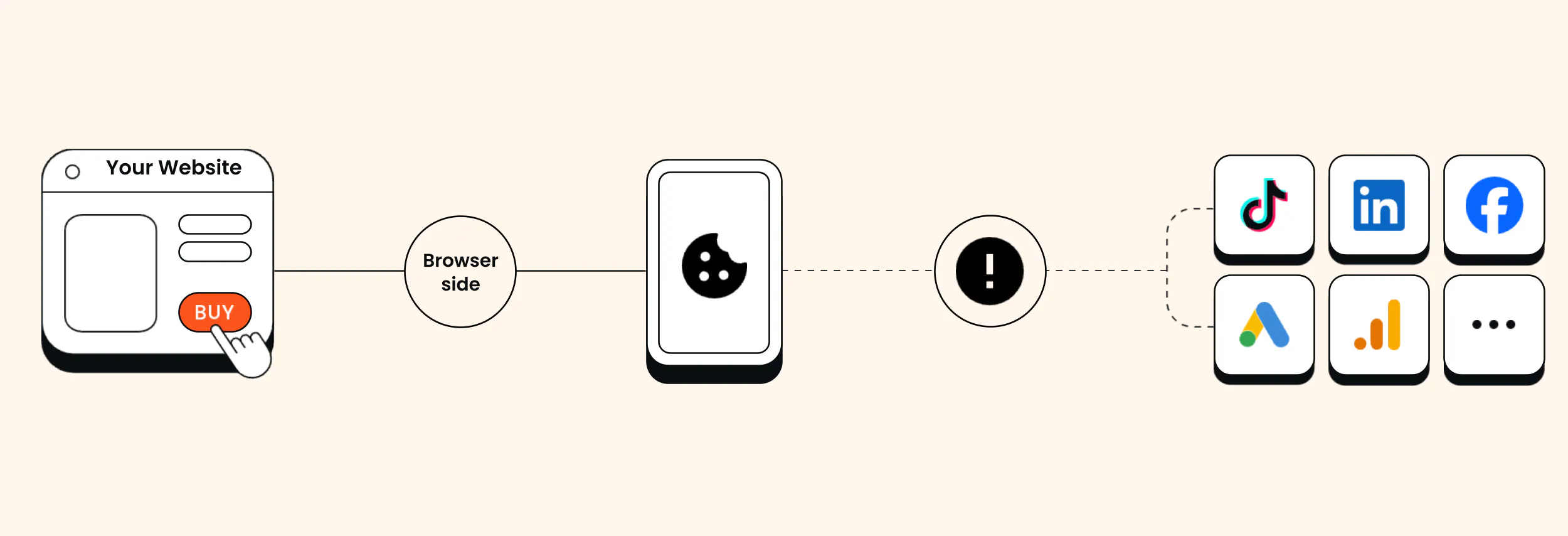
These browser obstacles are the reason you might be seeing fewer conversions on your Google Ads platform compared to your Shopify admin. The same pattern shows up across ecommerce conversion tracking setups on every platform.
While none of these pose a massive problem standalone, the compound data loss eventually leads to a significant tracking problem, which the meal kit company, Yummy, experienced firsthand.
Case Study
How Yummy recovered 30% more purchases and cut CAC by 15%
+30%
More purchases tracked vs pixel-only
-15%
Customer acquisition cost
+42%
New customers year over year
Yummy runs six-figure monthly ad budgets across Northern Europe, and their Google Tag Manager pixel setup wasn't keeping up. Moving to server-side tracking with conversion blocking and offline conversion tracking for repeat subscription purchases recovered over 30% more purchases than pixel-only tracking, cut customer acquisition cost by 15%, and supported 42% year-over-year growth in new customers.
"Getting this kind of growth in these market conditions doesn't come easy," Heiman notes. "Now that the algorithms have the right data in the right format, they just work better - the numbers speak for themselves."

Heiman Safeen
Group Growth Officer
People think they have one specific issue causing data loss. What we usually see is a bunch of small things. Consent declines, plus ad blockers, plus a couple of misconfigured tags, plus tags that don't always load because the page is slow. You lose a small percentage here and there, and all of a sudden you're losing half your data - Anni Salo, CEO at Tracklution
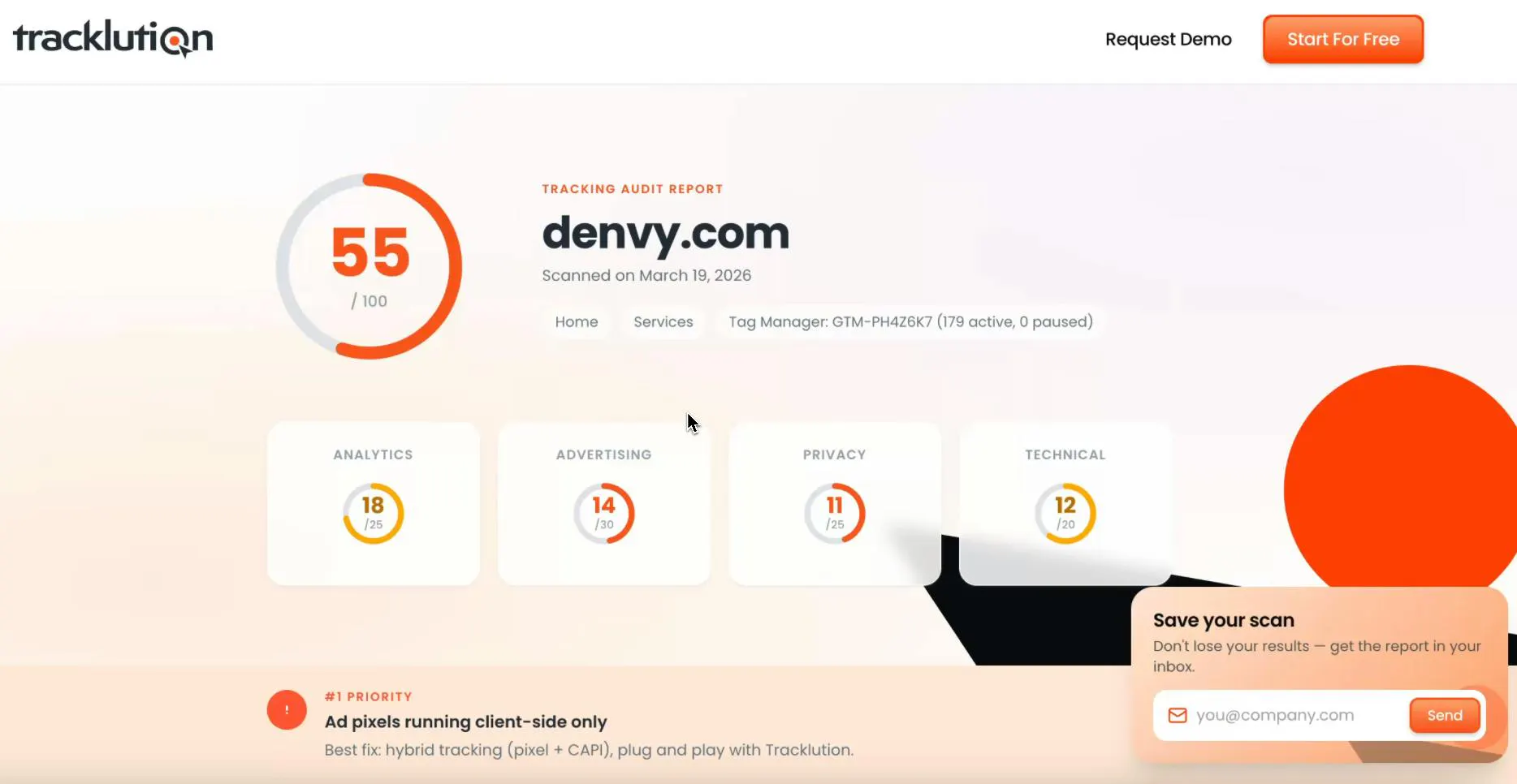
If you’re seeing a reporting discrepancy on your Shopify admin versus your Google Ads dashboard, this is why. It’s not a setup problem; it’s a tracking problem.
Going Further: Server-Side Tracking
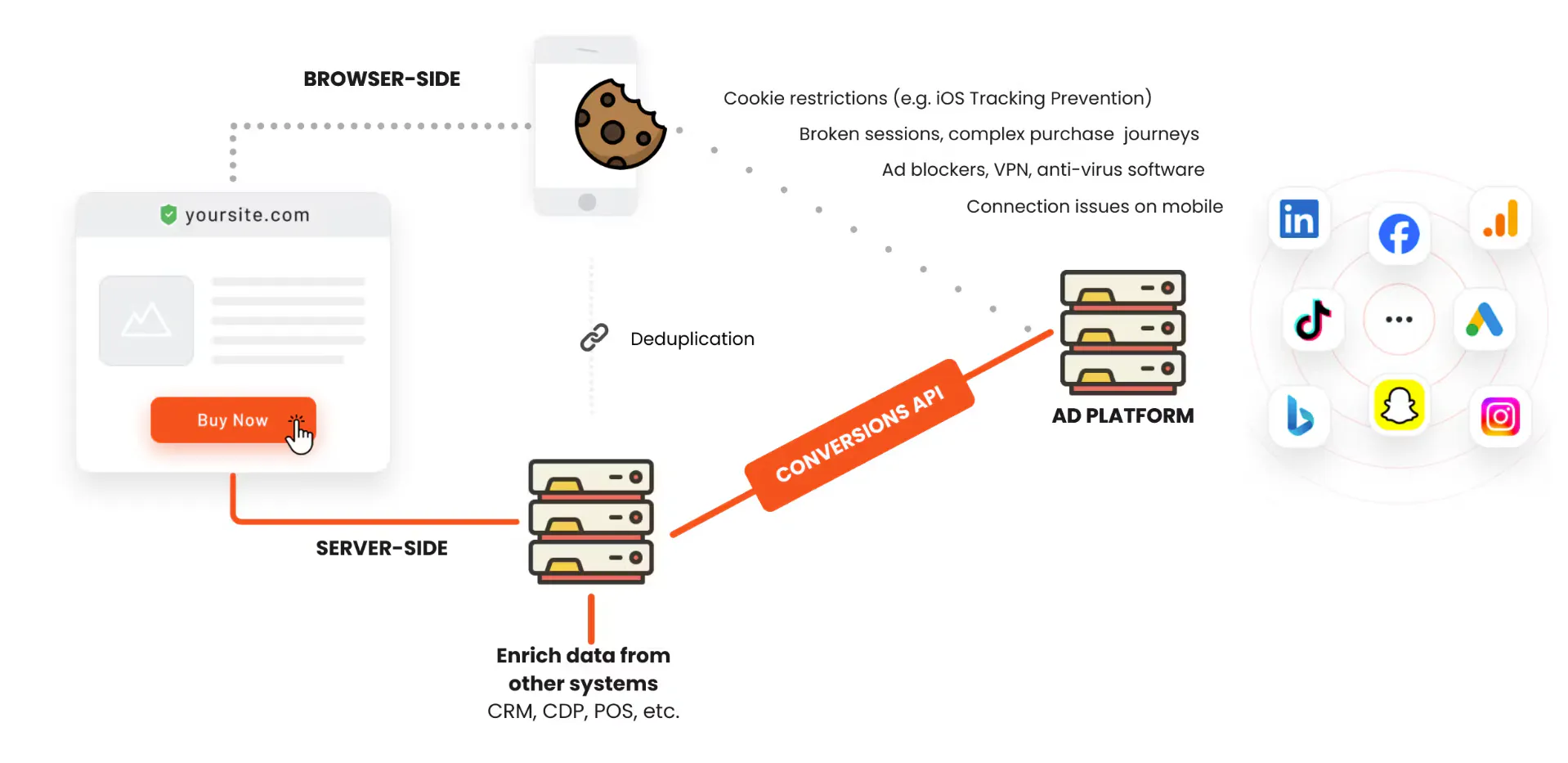
Server-side tracking takes reporting out of the browser, effectively sidestepping the above limitations. When a shopper takes an action on your site, instead of the event pinging directly from the user’s browser to Google Ads, it runs first through a server you control.
This server-to-server pathway is the core difference between client-side and server-side tracking. Events that travel server-to-server are less likely to be blocked by ad blockers; a closed tab is less likely to interrupt it, and ITP can’t kill it. Server-side tracking records conversions that would otherwise be lost, giving you and your ad algorithms a far more complete picture of your data.
Check out our guide on Google Ads server-side tracking for more depth.

In modern advertising, you win by giving algorithms the complete picture, not just part of it.
Read full case studyShaan Raja,
Team Lead SEO & Integration Analyst at The Platform Group
Using Tracklution for Shopify Google Ads Tracking
Configuring your own server-side setup can be technically laborious, with costs that add up quickly. You’ll need technical expertise for setup and maintenance, plus hosting fees.
Tracklution provides managed server-to-server tracking without all the hassle. When a customer takes an action on your Shopify store, Tracklution records the events and sends them to Google via the Google Ads API.
Tracklution installs on Shopify as a native custom pixel in Customer Events, the same mechanism Shopify expects everyone to use. An order creation webhook provides a reliable second signal at the server level for every transaction, so purchases are captured even when browser-side scripts fail.
It installs in three simple steps, taking an average of 16 minutes until it's up and running.
- Add a DNS record to enable first-party data collection
- Paste the pixel in Customer Events, and then
- Connect your Google Ads account in the Tracklution dashboard
No developer resources required.
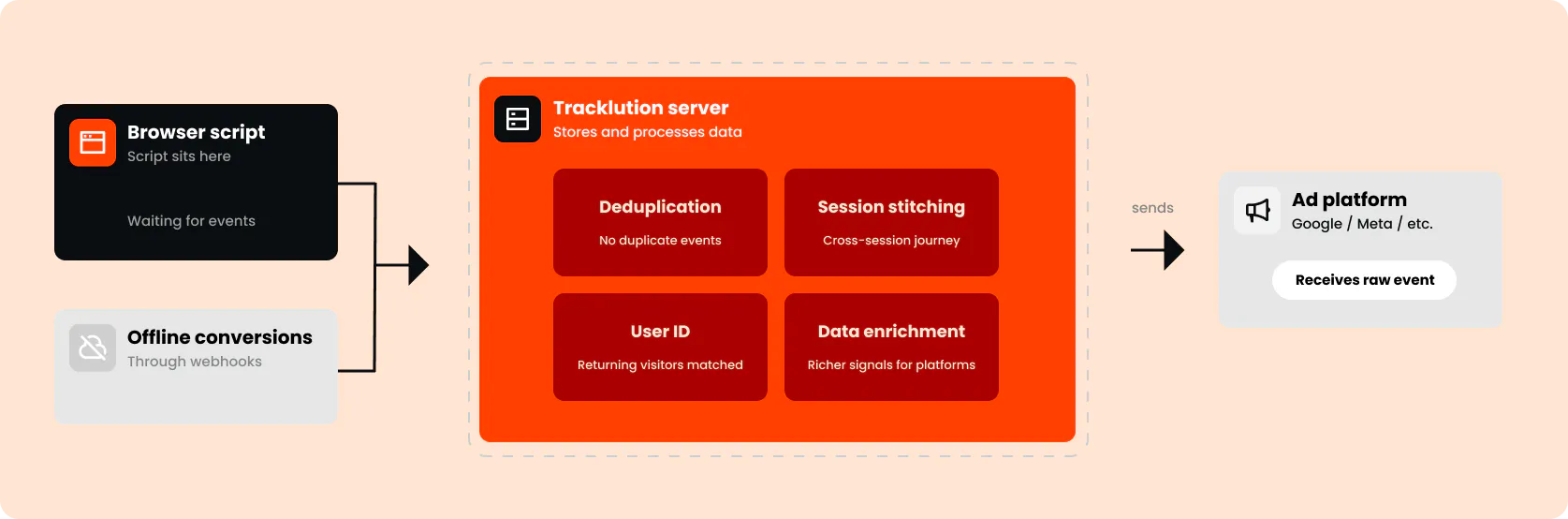
From there, Tracklution handles all of the work: configuring standard ecommerce events automatically, handling deduplication to prevent double-counting events, and keeping the API version up-to-date so that your tracking is always current. Need to track an event specific to your business? You can quickly set it up and start recording.
You can route your events to multiple ad platforms, such as Meta, LinkedIn, or GA4, from the same setup. It isn’t Shopify-specific either. You can manage server-side tracking on all major ecommerce platforms and custom setups.
Case Study
How Tonefest Guitar Gallery doubled ROAS and grew sales 36% with server-side tracking
2x
ROAS in 2 months
45%
Conversions recovered and fed back to ad platforms
36%
Increase in online store sales
Tonefest Guitar Gallery is a €1.2 million Finnish retailer competing against companies with ad budgets in the tens of millions. Incomplete conversion tracking was limiting how confidently founder Petri Matero could scale spend. After implementing server-side tracking in June 2025, Tonefest recovered 45% more conversions and doubled ROAS within two months. Integrating Shopify POS also made in-store purchases from online browsers visible in Google Ads reporting.
If you are running a shop and serve every other customer with your eyes closed, that's how marketing felt before. Tracklution lets me serve every customer with my eyes open.

Petri Matero
When you implement Shopify server-side tracking with Tracklution, attributed conversions start rising immediately as you recover lost conversions that you already earned. When do you start to see the money? Cost per conversion takes a little longer to set in but is hard to miss once it does.
According to Anni Salo, CEO at Tracklution, "depending on volume, the learning curve might take a week, a few weeks, or a few months. After that, when you compare what you've spent against the conversions you've gotten, the cost per conversion should be lower than before."
Optimize your Shopify conversion tracking
Install Tracklution as a Shopify custom pixel and start reporting conversions server-side in 16 minutes. No developer needed.
Conclusion
The gap between your store sales and Google Ads reporting is more than a tracking quirk. It directly impacts your budget spend; optimizing poorly, setting targets against underreported data, and sending resources to the wrong campaigns.
Client-side tracking is a solid starting point but eventually falls prey to browser limitations beyond your control. The Shopify stores getting ahead are the ones whose ad platforms see every conversion event. A server-side setup is the only way to make sure that happens.
Related posts
Conversion Tracking
Google Ads conversion tracking in 2026: A complete guide
Learn how Google Ads conversion tracking works, compare client-side and server-side setups, see where Enhanced Conversions fits, and choose the right approach.
Conversion Tracking
Google Ads conversion tracking in 2026: A complete guide
Learn how Google Ads conversion tracking works, compare client-side and server-side setups, see where Enhanced Conversions fits, and choose the right approach.
Conversion Tracking
Conversion tracking software: A practical buyer’s guide
Conversion tracking software covers many different tools solving different problems under one label. Find the category you need, with options for each.
Conversion Tracking
Conversion tracking software: A practical buyer’s guide
Conversion tracking software covers many different tools solving different problems under one label. Find the category you need, with options for each.

Conversion Tracking
Ecommerce conversion tracking: Fix your tracking gaps
See how ecommerce conversion tracking recovers lost conversions and improves marketing spend efficiency.
Conversion Tracking
Ecommerce conversion tracking: Fix your tracking gaps
See how ecommerce conversion tracking recovers lost conversions and improves marketing spend efficiency.
Questions and answers
1. Why does Shopify show more orders than Google Ads conversion tracking?
There are two reasons for this discrepancy in your tracking. Firstly, Google Ads only reports orders that come from an ad click. So if a user comes through organic, direct, or email channels, the order isn’t recorded. Secondly, the data loss due to client-side tracking limitations will be reflected in lower conversion events on your Google Ads dashboard.
2. Is the Google & YouTube app enough for accurate tracking?
As a starting point, it’s adequate to track purchase, add to cart, and checkout started conversions. However, it is still limited by browser restrictions and only links to one Google Ads account. If you’re running paid ads, especially with a significant budget, then a server-side setup supports more accurate tracking and more efficient spend.
3. My Google Ads conversions broke after Checkout Extensibility - how do I fix it?
It broke because your script lived in Additional Scripts or checkout.liquid, which no longer exist. You’ll need to rebuild the script as a custom pixel under Settings>Customer Events.
4. Do I need GTM to set up Google Ads conversion tracking on Shopify?
No, you don’t need GTM if you set up tracking with the Google & YouTube App for a client-side setup or with a server-side tracking tool like Tracklution.
5. What is Enhanced Conversions and should I enable it?
Enhanced Conversions attach first-party data to your conversion so that Google can match users according to email, name, and phone number. You should enable it to improve conversion matching, but note that it won’t plug the data leak that client-side tracking is prone to.

Have further questions?
Already convinced? Get 100% accurate data with server side tracking
Already convinced? Get 100% accurate data with server side tracking